![Primary logo_Soft White.svg]](https://support.kinexio.io/hubfs/Primary%20logo_Soft%20White.svg)
CSV upload allows you to enter sales data in bulk rather than one entry at a time.
You can use this method to:
-
Upload data for multiple entries in one file
-
Submit data for multiple periods
-
Ingest historical sales data efficiently
All uploads are completed through a sales collection campaign.
Step 1: Open the Campaign
-
Log into the Sales Collection Portal.
-
From the sidebar menu, select Collection.
-
Click Campaigns.
-
Open the campaign you want to upload data into.
Step 2: Set the Collection Dates
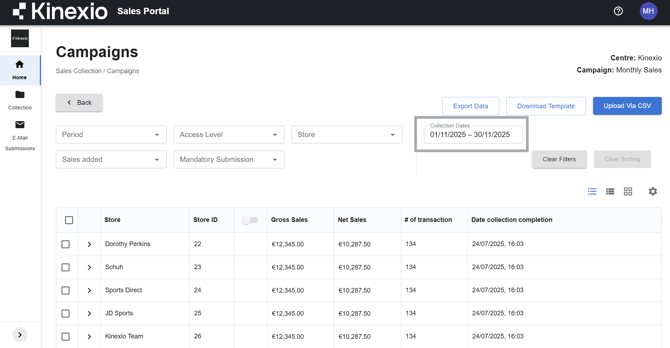
CSV upload relies on collection dates.
When you first open a campaign:
-
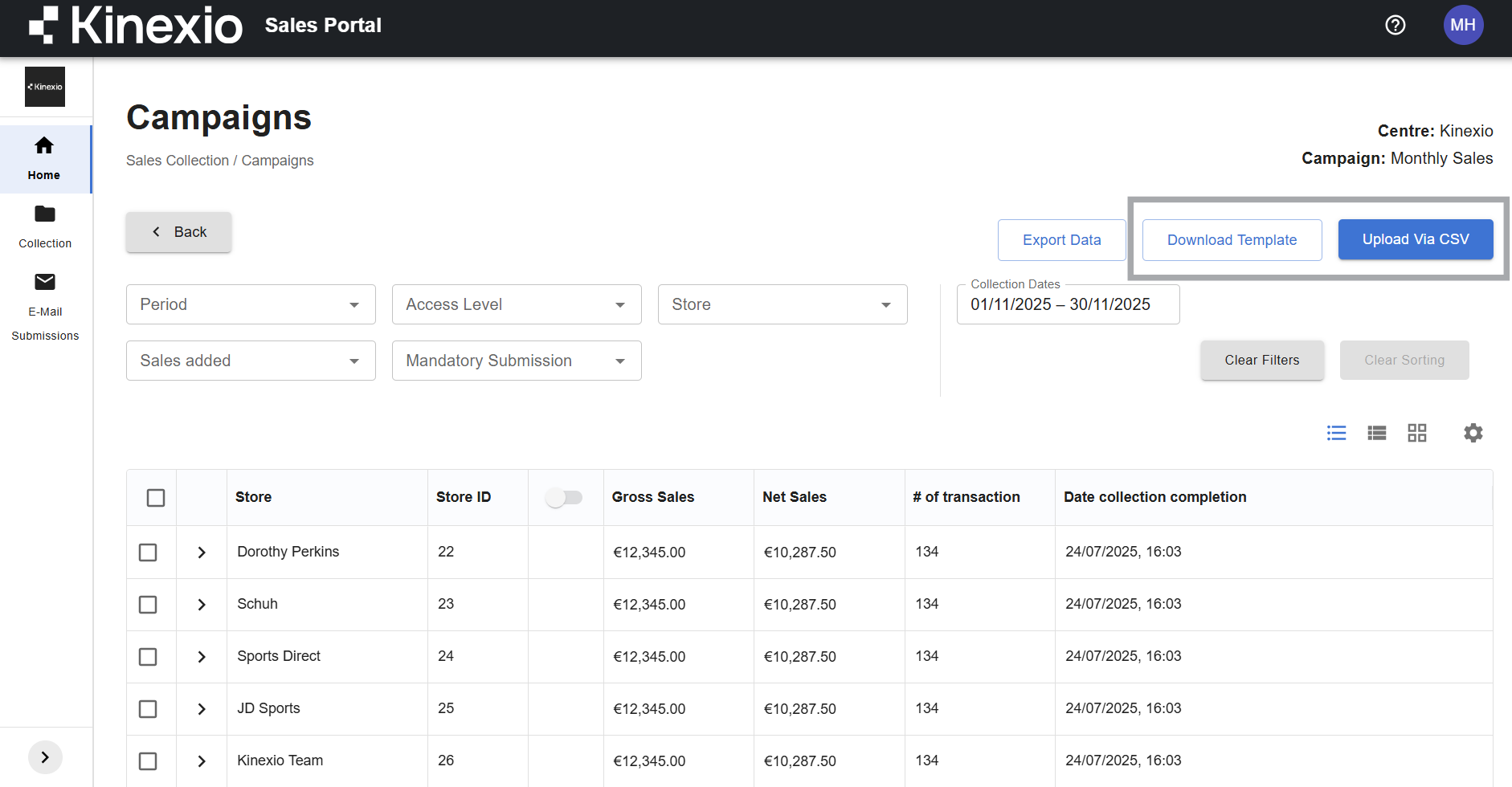
The Download Template and Upload via CSV buttons will be disabled
To enable them:
-
Set the collection dates at the top of the campaign page
(for example, last month or a custom date range) -
Once dates are selected, the buttons will become active
Step 3: Download the CSV Template
-
Click Download Template.
The template respects any filters you have applied:
-
If filters are applied, the template will only include relevant entries
-
If no filters are applied, the template will include all available entries for the selected date range
You can also download templates covering:
-
A single period
-
Multiple months
-
A full year (useful for historical uploads)
Larger date ranges may take longer to generate.
Step 4: Complete the CSV File
Open the downloaded CSV file and enter your sales data.
Key points to note:
-
Some fields may already be pre-filled if data exists
-
Existing values should be left in place unless they need correcting
-
Leaving pre-filled data unchanged helps prevent validation errors
You can complete:
-
Turnover
-
Net sales
-
Transaction counts
-
Item counts
(depending on how the campaign is configured)
Save the file once complete.
Step 5: Upload the CSV File
-
Return to the campaign page.
-
Click Upload via CSV.
-
Select your completed CSV file.
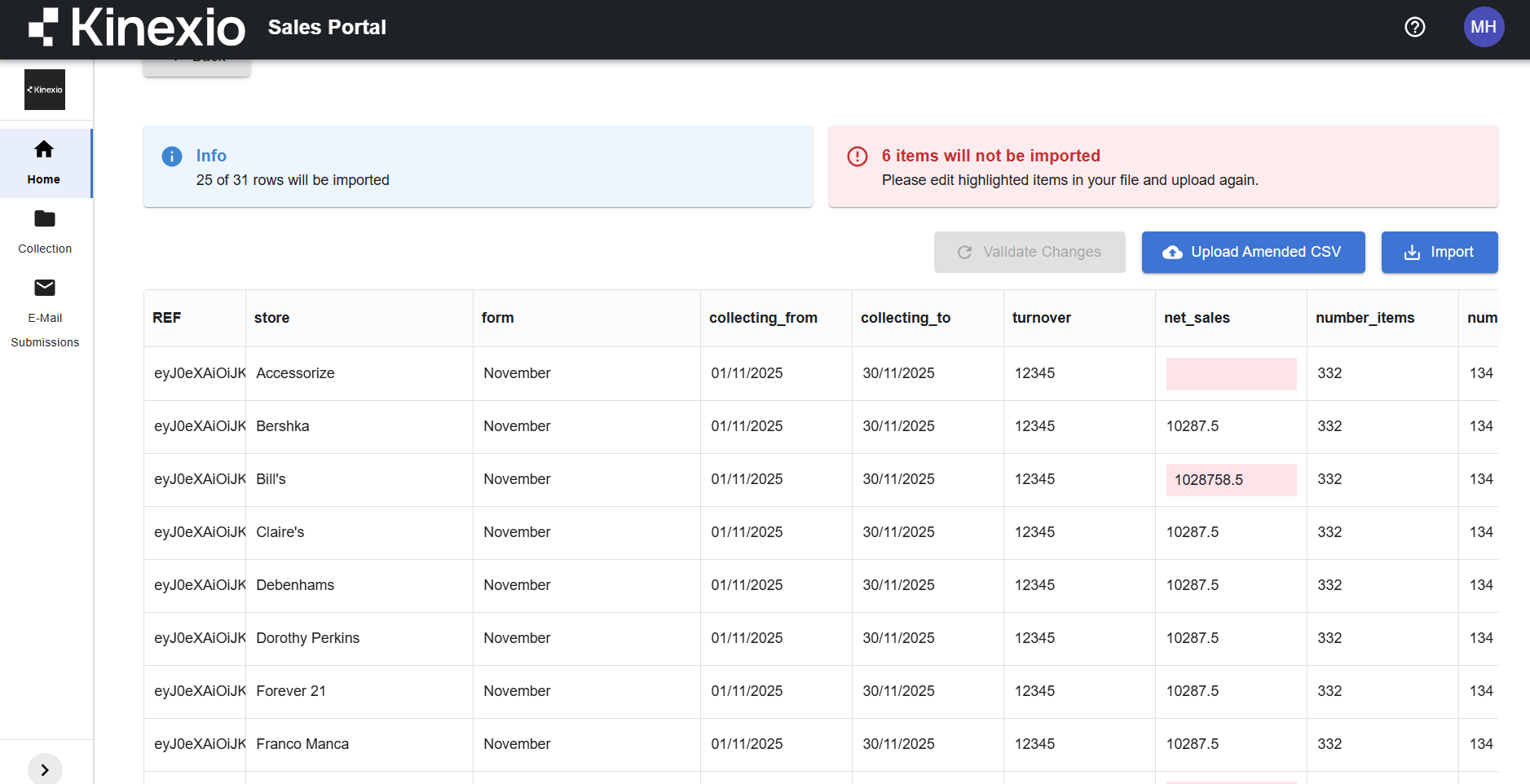
The system will immediately validate the data and show:
-
How many rows will be imported
-
How many rows contain errors
Step 6: Review and Fix Validation Errors
If any rows fail validation:
-
Cells with issues will be highlighted
-
Hovering over a highlighted cell explains what needs fixing
Common examples include:
-
Calculated values not matching expected totals
-
Required fields missing
-
Values that conflict with form rules
You can:
-
Double-click directly into the CSV preview
-
Correct values inline
-
Click Validate changes to recheck the file
The system updates the import count as issues are resolved.
Alternatively, if you have a lot of errors, you might find it easier just to fix them in the original CSV file and then use the Upload Amended CSV button. This will upload a new version of the CSV and totally replace the previous one.
Step 7: Import the Data
When ready:
-
Click Import.
Important to note:
-
Rows with errors will not block the entire upload
-
Valid rows will be imported successfully
-
Invalid rows will be skipped
This allows you to upload most of your data even if some entries are incomplete.
What Happens After Import
Once the upload completes:
-
Imported data appears in the campaign immediately
-
Progress and compliance figures update automatically
-
Any skipped entries remain outstanding until completed
This upload method works for both:
-
Property management teams
-
Retail users with access to multiple entries