![Primary logo_Soft White.svg]](https://support.kinexio.io/hubfs/Primary%20logo_Soft%20White.svg)
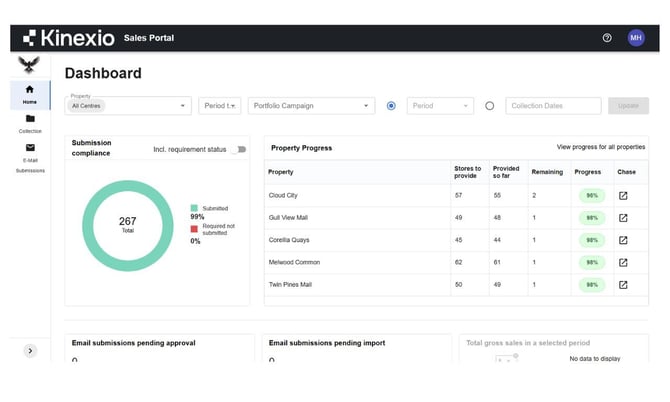
The Sales Collection Dashboard is the first screen you see after logging in.
It provides a consolidated view of sales collection activity for all properties you have access to.
If you are linked to a property in the system, and that property has an active Sales Collection campaign, it will appear on this dashboard.
What You’ll See on the Dashboard
The dashboard shows high-level snapshots of how sales collection is progressing for the selected time period.
Key sections include:
-
Submission compliance
Shows how many retailers have submitted their sales data compared to how many are expected. -
Property progress
A breakdown of sales submission progress by property. -
Pending email submissions
Highlights sales that are awaiting approval or import. -
Total sales growth
A summary indicator based on the filters you have applied. -
Submission volumebychannel
Shows how submissions are coming in over time.
These figures update automatically when you change filters.
Using Filters to View the Right Data
At the top of the dashboard, you’ll find several filters that help you focus on specific properties or timeframes.
Filter by Property or Portfolio
You can:
-
Filter by individual properties, or
-
Focus on a specific portfolio or sales campaign
This is useful if different properties collect sales in different ways. For the most part, these will be set for you by default, but you may be in multiple properties with different collection periods.
Filter by Collection Dates or Periods
Sales collection campaigns can run on different schedules for different properties. Usually, these will be the same across a portfolio, but you may encounter a situation where different geographical regions have different collection cadences. They will fall into one of these three groups:
-
Daily
-
Weekly
-
Monthly
Because of this, you’ll need to choose the right filtering method.
Collection Dates
Use collection dates when working with:
-
Daily sales collection, or
-
When reviewing a range of dates
For example, selecting “last month” will show all sales collected during that time, regardless of how frequently they are submitted.
Periods
Use periods when working with:
-
Monthly or weekly sales collection
For example, selecting a specific month allows you to review sales submissions for that reporting period.
Some dashboards may show different period values depending on how sales are collected. This is expected when multiple campaign types are active.
Updating the Dashboard
After adjusting your filters:
-
Select your preferred options.
-
Click Update.
The dashboard will refresh and recalculate all figures based on your selections.
Viewing Property-Level Progress
From the property progress table, you can click View progress for all properties
This opens a table showing:
-
Each property
-
Submission status
-
Remaining stores yet to submit sales
The numbers shown reflect:
-
The filters you applied
-
The access levels set up for sales collection
Clicking the chase icon will then navigate you to the chase page where you can navigate to specific tenants and send push or chase emails, as well as log statuses or conversations that you may have had with the tenant in regards to uploading their sales collection data for that specific period.
Note: Keeping your access levels accurate in the CMS is important, as they determine which stores are expected to submit data.
Key Things to Remember
-
The Sales Collection Dashboard is for monitoring submission progress, not deep sales analysis.
-
Filters behave differently depending on whether sales are collected daily, weekly, or monthly.
-
Always check whether collection dates or periods are most appropriate for the campaign you’re reviewing.
-
If figures look unexpected, access levels or campaign settings may need to be reviewed.
The dashboard is focussed to help you monitor and optimise the sales submission process. Sales performance reporting and deeper insights are available in our Lease Intelligence Platform, not within the Sales Collection Portal.