![Primary logo_Soft White.svg]](https://support.kinexio.io/hubfs/Primary%20logo_Soft%20White.svg)
The Campaigns page allows you to quickly contact users involved in a sales collection campaign.
This is commonly used to:
-
Remind users to submit outstanding sales data
-
Follow up on missing or incomplete submissions
Where Notifications Are Sent From
Notifications can be sent from within a sales collection campaign.
-
Log into the Sales Collection Portal
-
Go to Collection
-
Select Campaigns
-
Open the campaign you want to work with
Step 1: Filter the Campaign (Optional)
Before sending a notification, you can use filters to narrow down the list.
Common examples include filtering by:
-
Submission status (for example, not yet submitted)
-
Period
-
Collection dates
This helps ensure you only contact the users you need to.
Step 2: Select Users Using Checkboxes
On the campaign page:
-
Use the checkboxes on the left-hand side of the table
-
Select one or multiple rows
Your selection determines who will receive the notification.
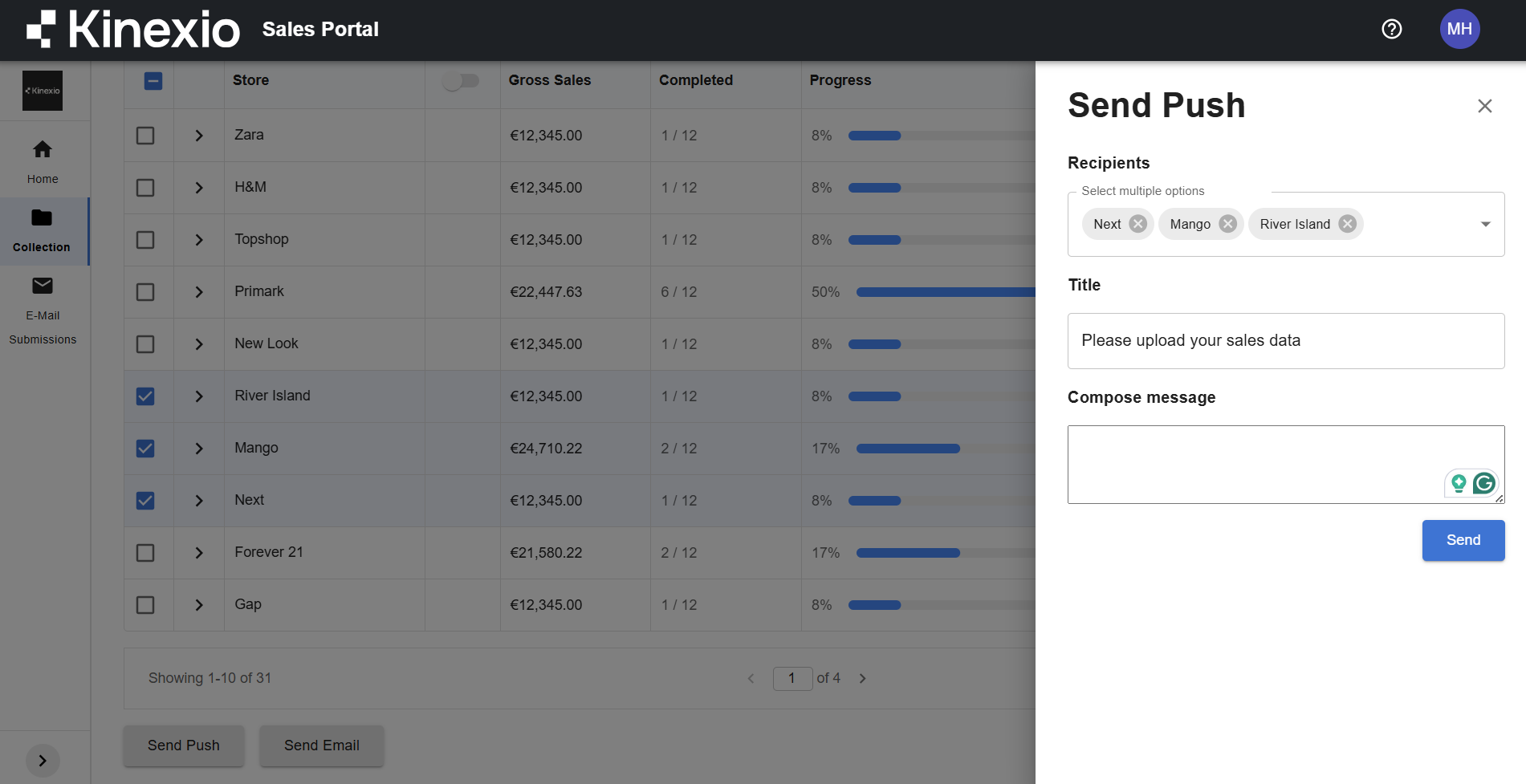
Step 3: Send a Push Notification
To send a push notification:
-
Select one or more rows using the checkboxes
-
Click Send Push at the bottom of the page
A slide-in panel opens on the right-hand side.
-
Enter:
-
Title
-
Message body
-
-
Review your message
-
Send the notification
The push notification is sent to all selected users who have access to the app.
Example Use Case
You may want to:
-
Filter the campaign to show only users who have not yet submitted data
-
Select all filtered rows
-
Send a single push notification reminding them to complete their submission
This allows you to follow up quickly without contacting users individually.
Step 4: Send an Email Notification
You can also send an email using the same selection process.
-
Select one or more rows using the checkboxes
-
Choose the Send Email option
Your default email client will open automatically with:
-
Recipients pre-filled
-
Only users with the relevant sales collection contact tag included
You may want to read how to add sales collection contact tags if you do not have those set up yet.
You can then:
-
Add your subject line
-
Write your message
-
Send the email as normal
This is useful if users do not regularly check app notifications or if a longer message is required.