![Primary logo_Soft White.svg]](https://support.kinexio.io/hubfs/Primary%20logo_Soft%20White.svg)
Overview
The Kinexio Sales Portal is used to collect and manage sales data. Before entering your login details, you must first choose how you are logging in:
-
Property Management Team
-
Retailer (Tenant)
This selection determines what data you can access once you are logged in.
Step 1: Go to the Sales Portal
-
Open your web browser.
-
Enter the Sales Portal URL:
-
UK / EU users: sales.mallcommapp.co.uk
-
Americas users: sales.mallcommapp.com
-
Step 2: Choose Your Login Type
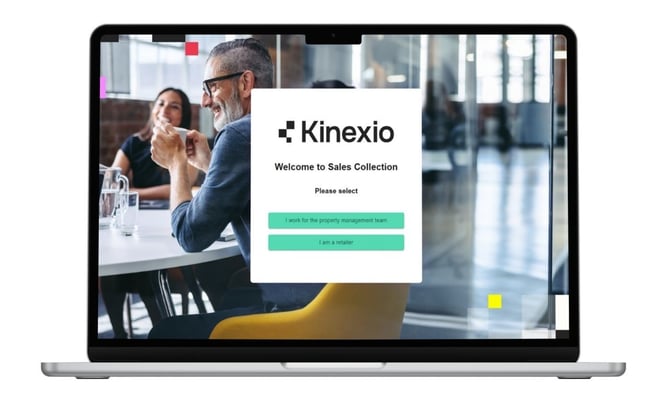
On the login page, select whether you are logging in as a Property Management Team or a Retailer.
Property Management Team
Choose Property Management Team if you are responsible for collecting and managing sales data across:
-
An entire property, or
-
Multiple properties within a portfolio
This option is typically used by asset management teams, asset managers who oversee sales collection.
Retailer (Tenant)
Choose Retailer if you are responsible for adding sales data for:
-
A single tenant, or
-
Multiple tenants across one or more properties
This option is used by store teams and tenant representatives submitting their own sales figures.
Step 3: Enter Your Login Details
-
Enter your email address.
-
Enter your password.
-
Click Log in.
Your access and available features will be based on:
-
The login type you selected, and
-
The permissions assigned to your account
What Happens Next
Once logged in, you will be taken to your sales dashboard.
The data and tools you see will depend on whether you logged in as a Property Management Team user or a Retailer.