![Primary logo_Soft White.svg]](https://support.kinexio.io/hubfs/Primary%20logo_Soft%20White.svg)
Sales data is entered through sales collection campaigns.
Each campaign represents a structured collection period (daily, weekly, or monthly), depending on how sales are configured for your property.
You can enter sales data directly into a campaign without uploading a file.
Step 1: Go to the Campaigns Page
-
Open the Sales Collection Portal.
-
From the sidebar menu, select Collection.
-
Click Campaigns.
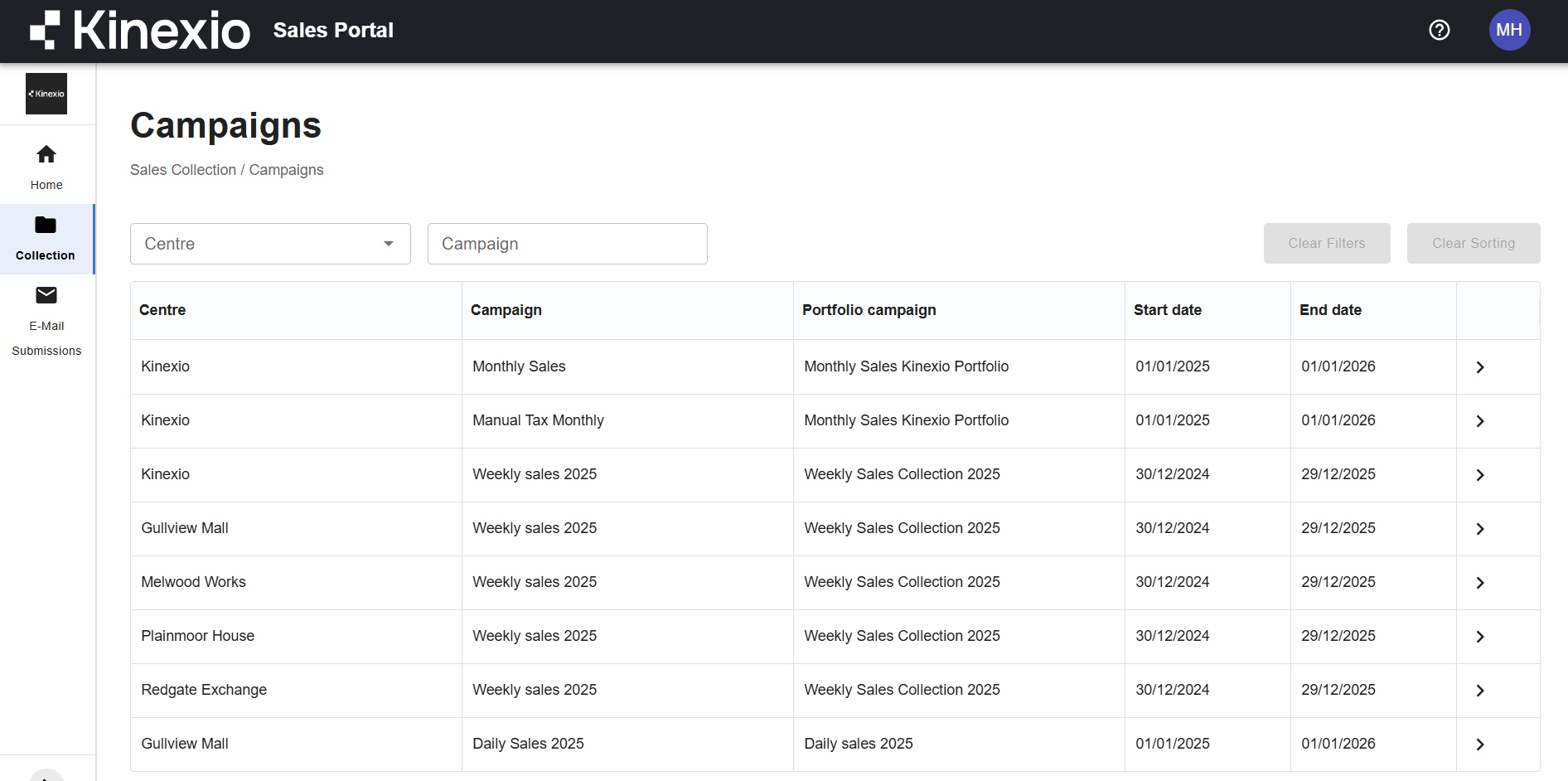
This opens the Campaigns page, which lists all sales collection campaigns you have access to across your properties.
Step 2: Find the Correct Campaign
To quickly locate the campaign you need, you can use the filters at the top of the page.
You can filter by:
-
Property
-
Campaign name
Once filters are applied, the list updates to show only relevant campaigns.
-
Select the campaign you want to work on.
-
Click anywhere on the campaign row to open it.
Step 3: Review Campaign Progress
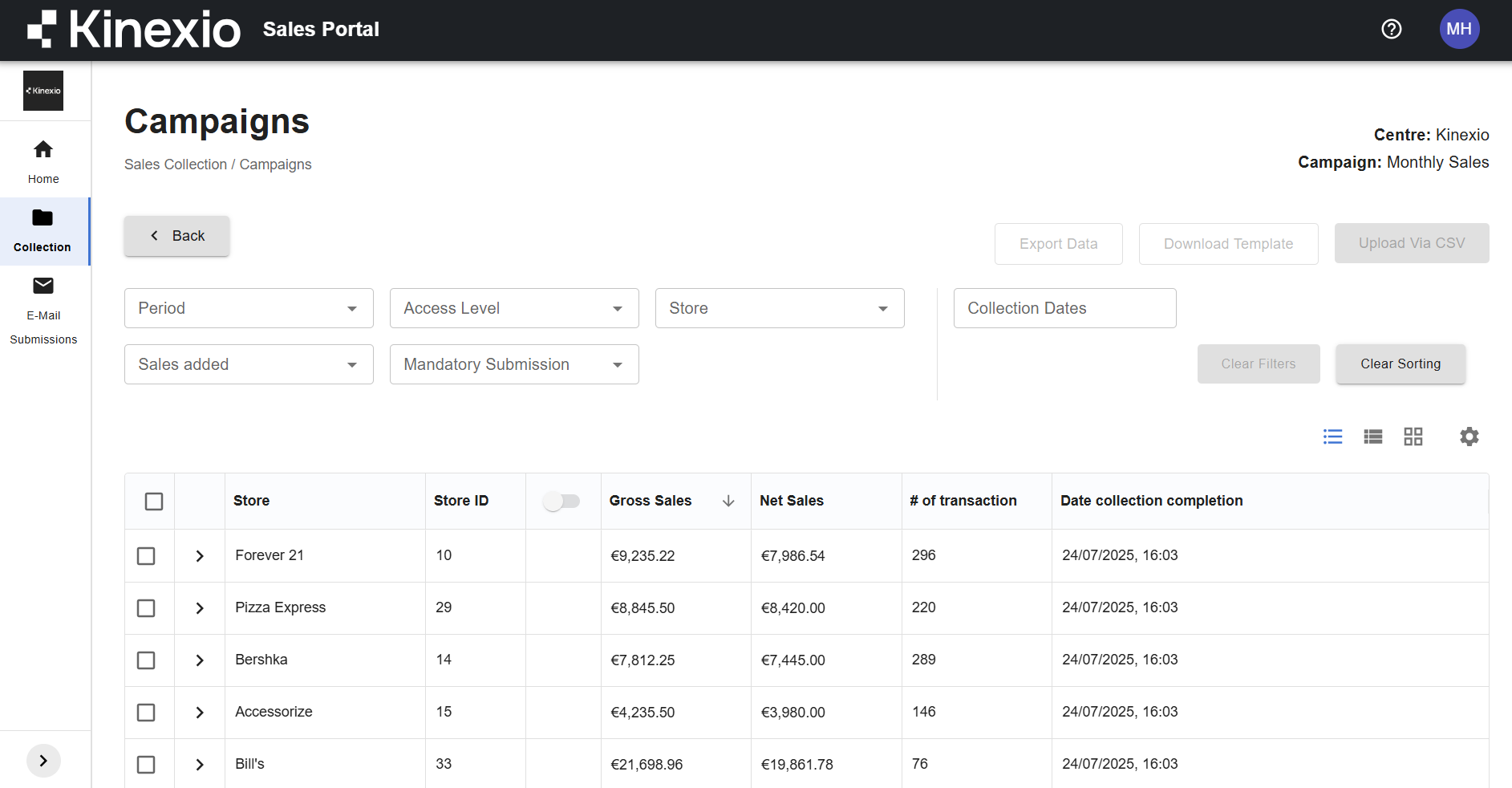
Inside a campaign, you’ll see:
-
A list of all sales entries linked to that campaign
-
Overall progress for the full campaign
-
Individual periods that still require data entry
You can expand a row to view the specific periods that need to be completed.
Step 4: Enter Sales Data
-
Expand the relevant row to view the available periods.
-
Click the plus (+) icon next to the period you want to complete.
A slide-in panel opens on the right-hand side of the screen.
-
Enter the required sales data for that period.
-
Save your changes.
You can repeat this process to enter data period by period as needed.

Step 5: Use Filters to Speed Up Entry
The campaign page includes several filters to help you find the exact entry you need.
You can filter by:
-
Period
-
Access level
-
Submission status (entered or not entered)
-
Whether submission is required
-
Collection dates
These filters only affect what’s shown on the page and do not change any data.
Step 6: Customise the Table View
To adjust what information is visible on the page:
-
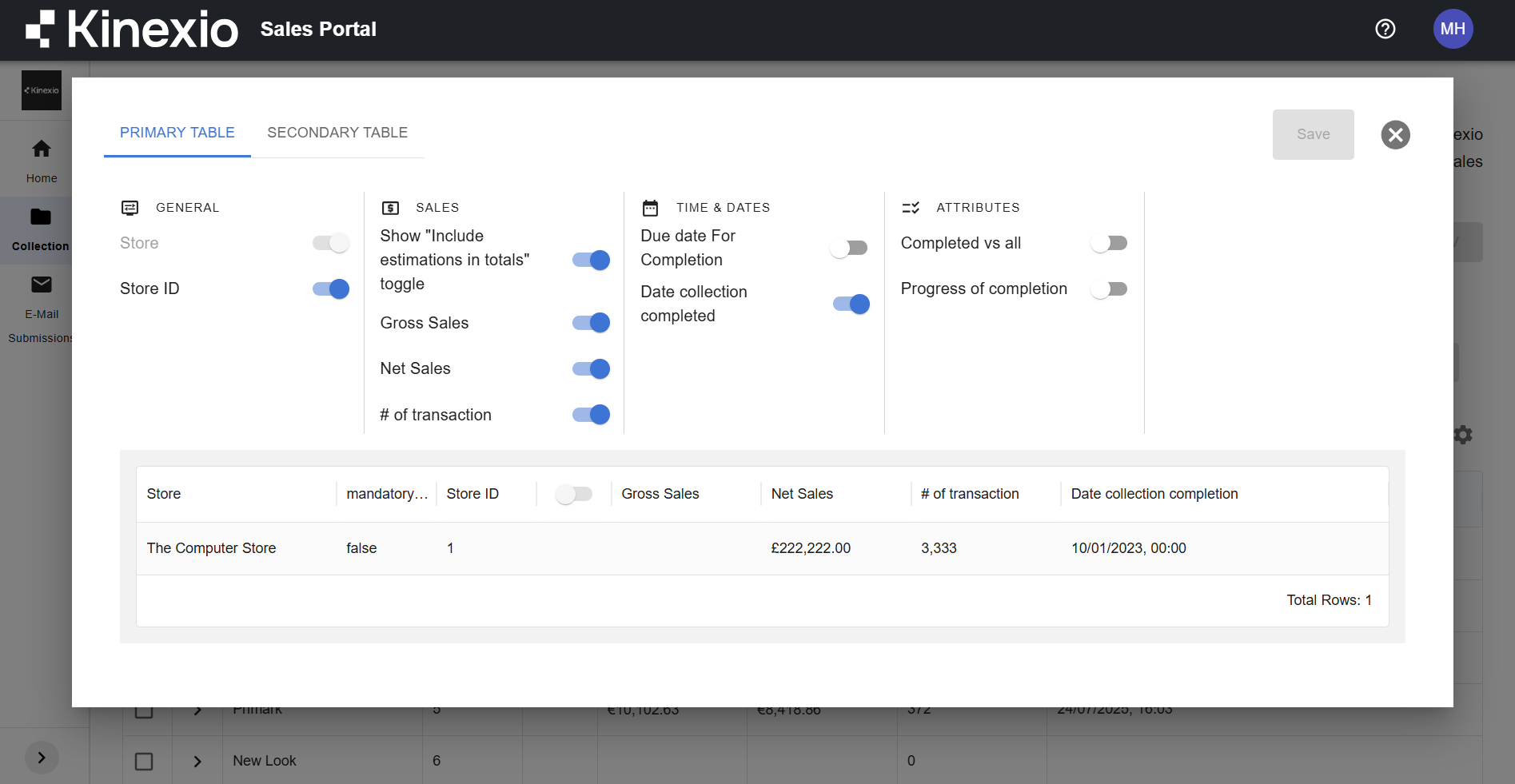
Click the settings (⚙️) icon on the right-hand side.
-
Choose which columns to show or hide in:
-
The primary table (main view)
-
The secondary table (expanded view)
-
-
Click Save to apply your preferences.
This helps keep the page focused on the data you need most.
Step 7: Change How Data Is Grouped
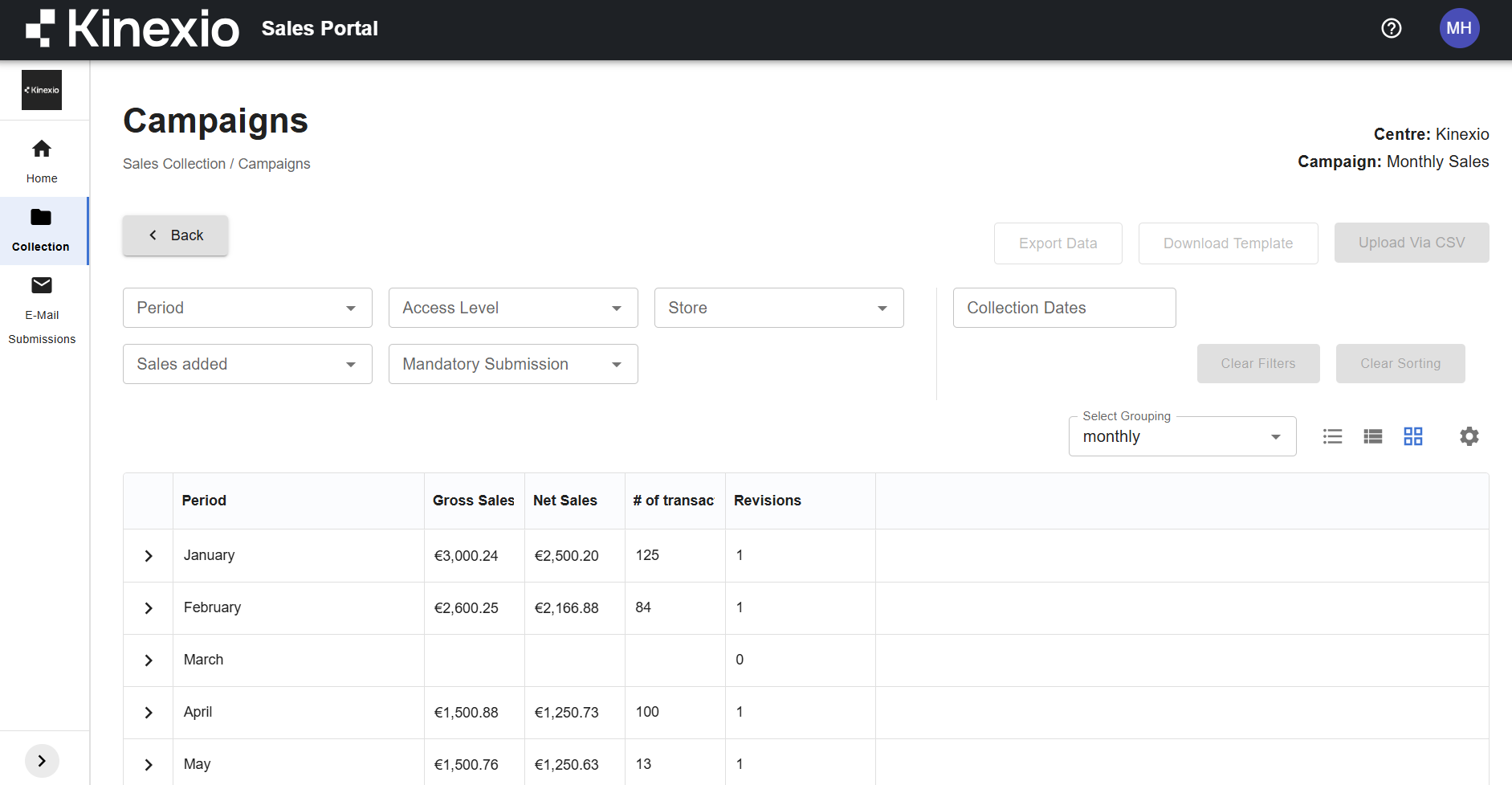
You can also change how entries are displayed using the view controls next to the settings icon.
Available views include:
-
Grouped by entry (default)
-
Expanded view showing each individual period
-
Grouped by month, which shows totals at a monthly level and allows you to expand for further detail
These views do not affect the data itself — they only change how it is displayed.
What’s Next?
This method is best for:
-
Entering or updating sales data individually
-
Making quick corrections
-
Reviewing progress at a detailed level
If you need to enter a large amount of data at once, you can also upload sales data using a CSV file.