![Primary logo_Soft White.svg]](https://support.kinexio.io/hubfs/Primary%20logo_Soft%20White.svg)
Overview
Automations allow you to set up ongoing notifications that are automatically sent during a sales collection campaign.
Instead of manually chasing submissions, you can use automations to:
-
Send reminders when collection opens
-
Follow up with users who have not submitted data
-
Notify users before or after a collection period ends
Automations run automatically based on the rules you define.
Where to Find Automations
-
Log into the Sales Collection Portal.
-
From the sidebar menu, select Collection.
-
Click Automations.
Before viewing or creating automations, you must select a centre.
Automations are currently managed at centre level.
Viewing Existing Automations
Once a centre is selected, you’ll see a list of all automations set up for that centre.
You can filter the list by:
-
Campaign
-
Status (active or expired)
-
Notification type (push or email)
This makes it easy to review what is already running and avoid duplicates.

Creating a New Automation
To create a new automation:
-
Select your centre.
-
Click Create Automation.
You’ll be guided through a series of setup steps.
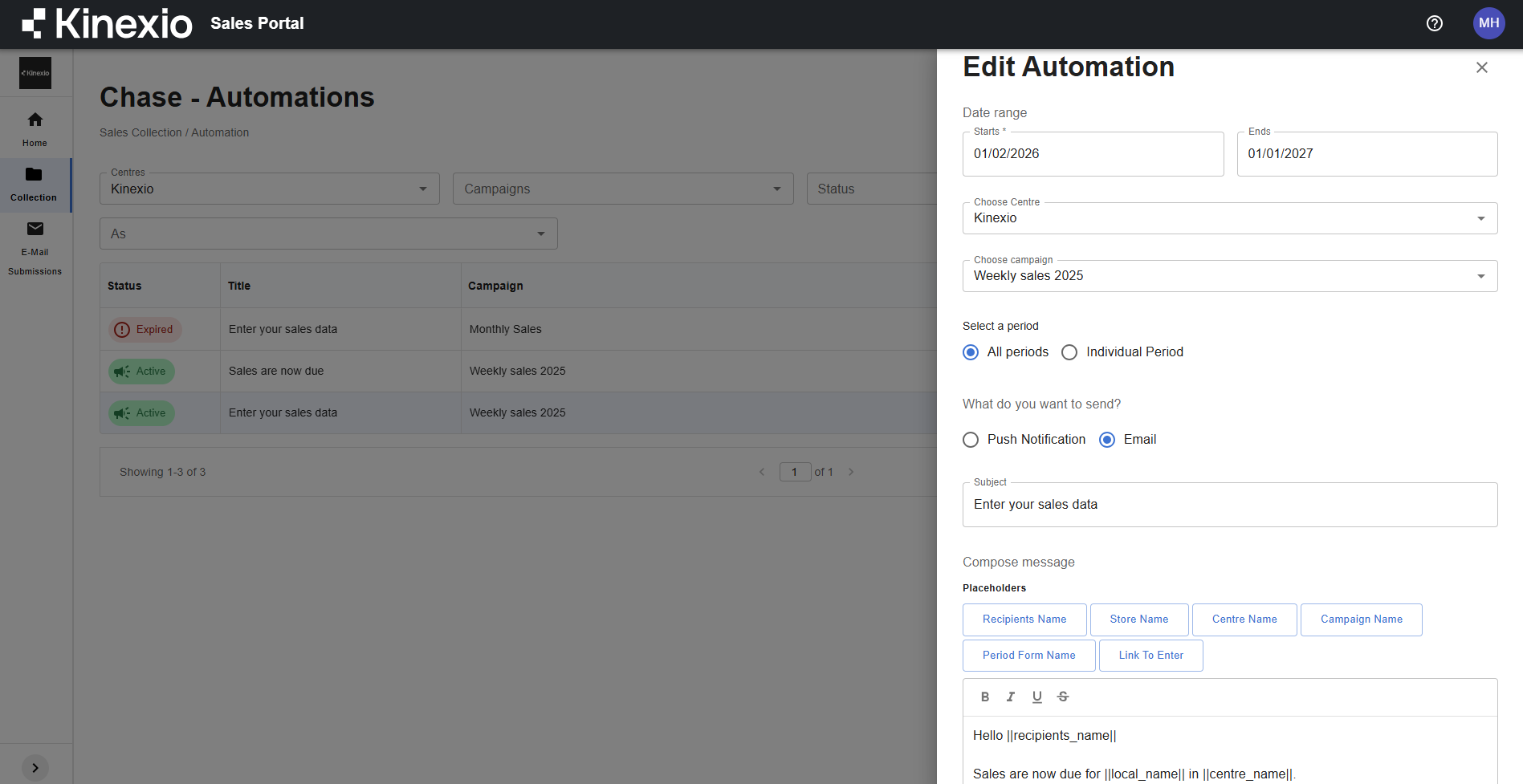
Step 1: Set the Automation Date Range
Choose:
-
Start date – when the automation begins
-
End date – when the automation stops
Important notes:
-
The start date must be today or a future date
-
Automations are typically aligned with the campaign schedule
Step 2: Select the Campaign
-
Confirm the centre (this is pre-filled based on your selection).
-
Choose the sales collection campaign the automation relates to.
-
Select whether the automation applies to:
-
All periods (most common), or
-
A specific period (for one-off reminders)
-
Step 3: Choose Notification Type
You can send either:
-
Push notifications, or
-
Email notifications
Push Notifications
For push notifications:
-
Enter a title
-
Enter a message body
Push notifications are sent directly to app users included in the campaign.
Email Notifications
Email notifications allow additional customisation:
-
Enter an email subject
-
Enter the email body
-
Use placeholders to personalise the message (for example, recipient name or centre name)
-
Include a direct link to the Sales Collection Portal
This helps recipients quickly access the correct place to enter data.
Step 4: Choose Who Receives the Automation
Recipients are determined by:
-
The access level linked to the campaign
You can also choose to send the automation only to users who are:
-
Required to submit sales data (based on lease requirements)
This ensures reminders are only sent to relevant users.
Step 5: Set When the Notification Is Sent
You can schedule notifications based on the campaign timeline, including:
-
On the day collection starts
For example, at 9:00am on the opening day -
After collection has started
For example, a reminder 3 days after opening, sent only to users who have not yet submitted data -
Before collection ends
For example, a final reminder one day before the deadline -
After collection ends
For example, a past-due notification if data has not been submitted
Automations sent after the start of collection will only go to users who have not yet entered data.
Saving Automations Efficiently
When saving an automation, you have two options:
-
Save
-
Save and create another
The Save and create another option keeps your existing settings (campaign, timing, recipients), allowing you to quickly create multiple notifications with different messages.
This is useful for building a complete reminder sequence in one session.
Managing Existing Automations
From the Automations list, you can:
-
See which automations are active or expired
-
Click into an automation to review its details
-
Edit an automation using the edit icon
Changes take effect immediately for future scheduled sends.
When to Use Automations
Automations are ideal for:
-
Regular sales collection cycles
-
Reducing manual follow-ups
-
Creating a consistent reminder cadence
-
Improving submission rates without extra effort
They work alongside manual push and email notifications sent from the Campaigns page.