![Primary logo_Soft White.svg]](https://support.kinexio.io/hubfs/Primary%20logo_Soft%20White.svg)
When a retailer emails their sales figures, the submission lands in your Sales Collection Portal ready to review. You check it, match it to the right store and campaign, and import it — all from one screen.
Retailers can send a single monthly figure or a full daily breakdown, as the email body or a PDF, Excel or CSV attachment, and there's nothing they need to change about how they send it.
Note: All screenshots are made up demo data, they do not reflect any real trading.
If you don't have email ingestion set up yet, please reach out to your account manager or our support team, who can put you in touch with a team member that can help guide you through the process.
1. Find your submissions
- Open the Sales Collection Portal and go to Email Submissions. Each submission waiting to be imported appears as a row, with the centre already filled in for you.
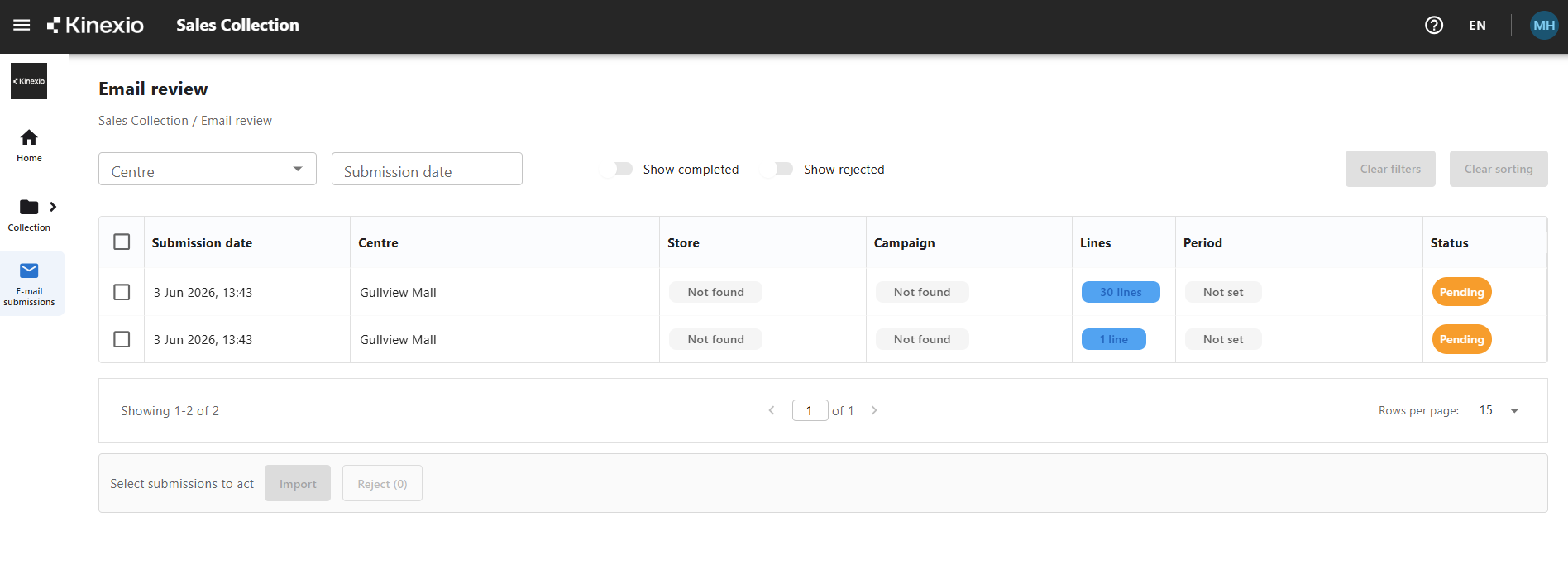
You can filter by submission date, switch on Include completed to look back at ones you've already imported, and switch on Show rejected to see any you've rejected.
Note: a submission can take up to a minute to appear after it's emailed. If someone tells you they've just sent it, give it a moment before you go looking.
2. Open a submission
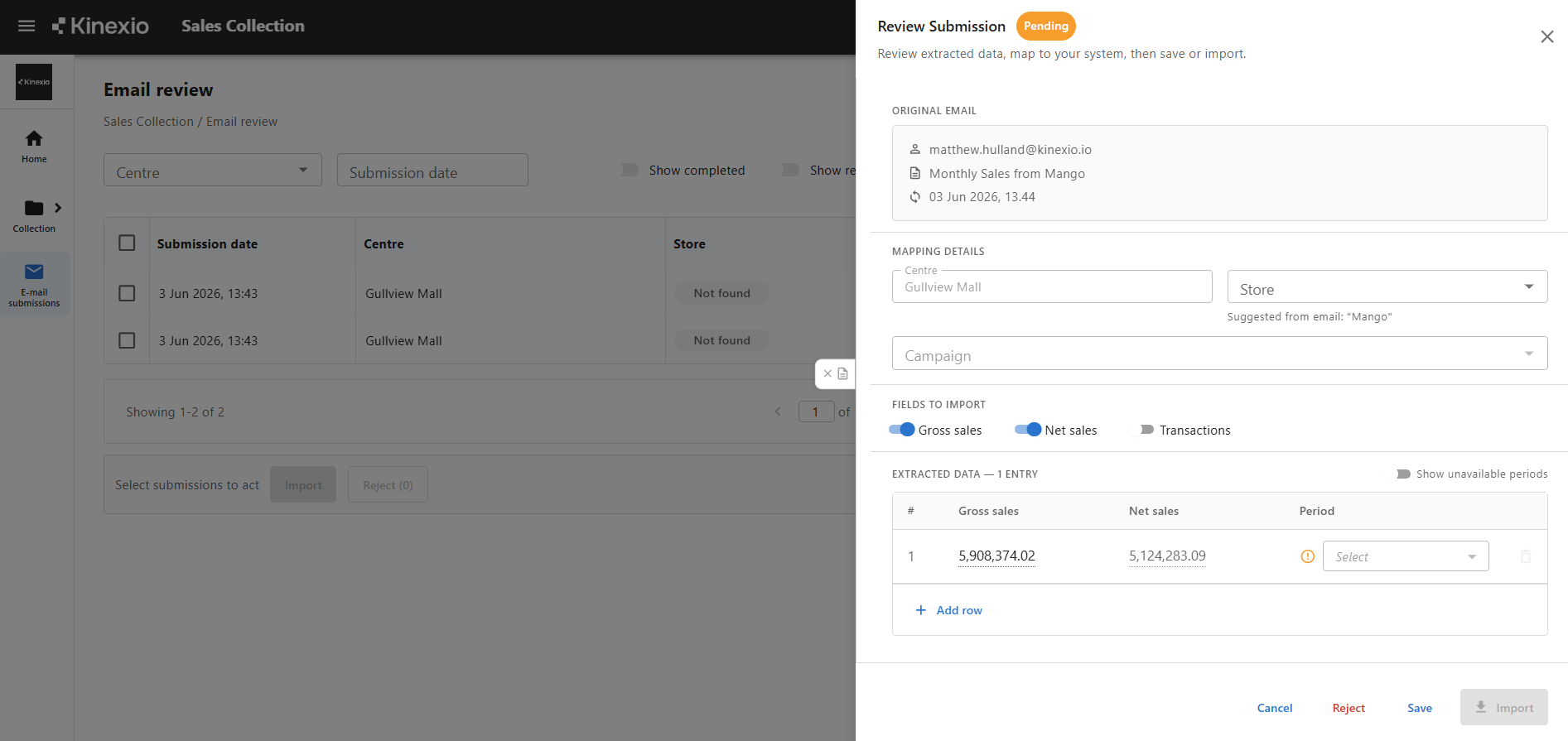
- Click a row to expand it. You'll see the figures that came in and the dates they cover. Open the slide-out to view the original — the document or the email it came from — alongside the figures.
3. Match the store and campaign
- Set the store first. A suggested store is shown — check it, because the email sometimes uses a different name, so make sure it's the right one.
- Select the campaign the figures belong to. Once you've chosen the store, you'll only see the campaigns that store is part of.
- Match the periods. Open periods show by default, and if the dates line up the portal fills the mapping in for you. To import late or older figures, switch on Show inactive periods — closed periods then become selectable. You can also click any mapped date to change it.
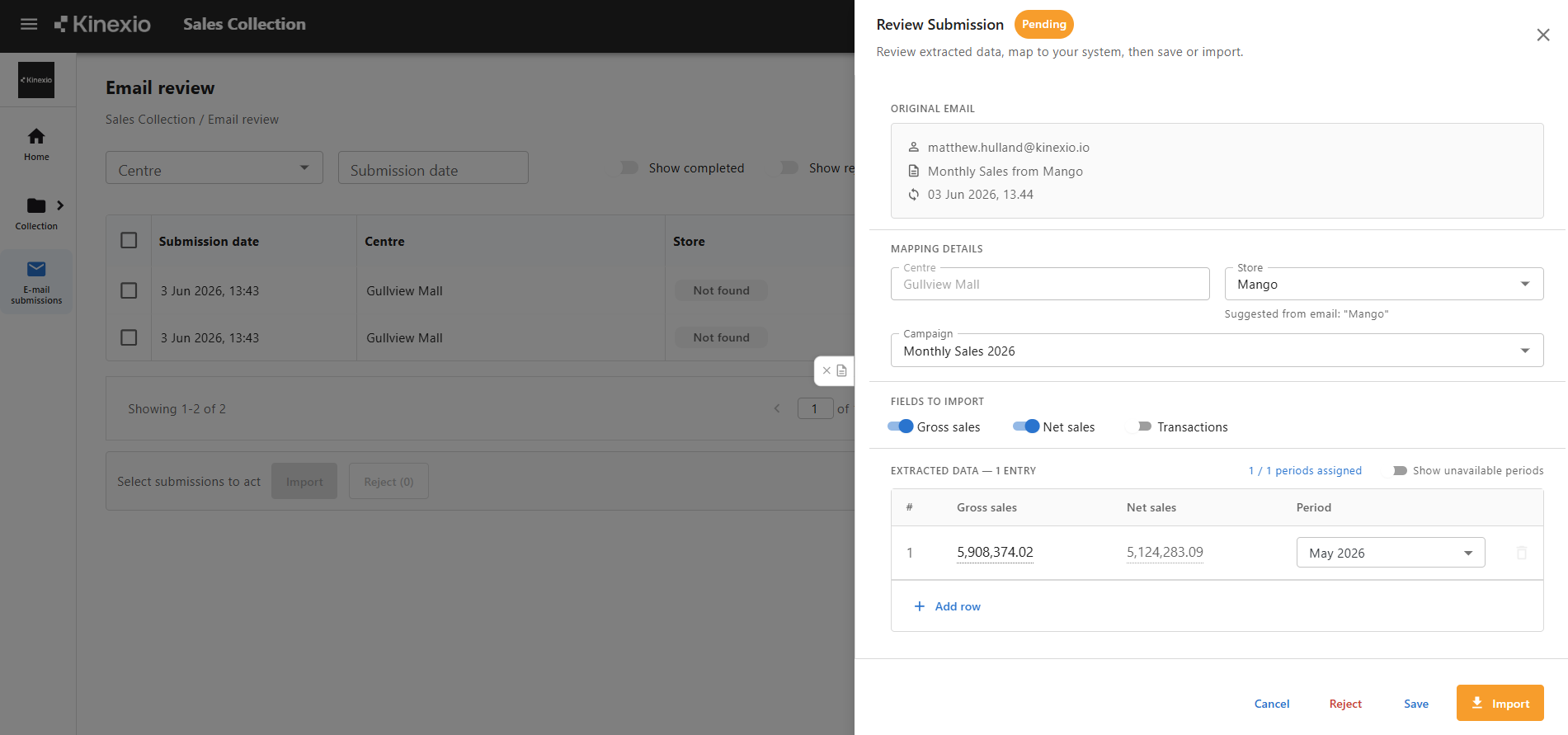
Note: you can't choose a period until you've set the store. If the period options aren't available, pick the store first.
4. Tidy up and import if necessary
- Remove any rows you don't need with the trash can, add a row if one's missing, and click into any figure to correct it.
- Click Import.
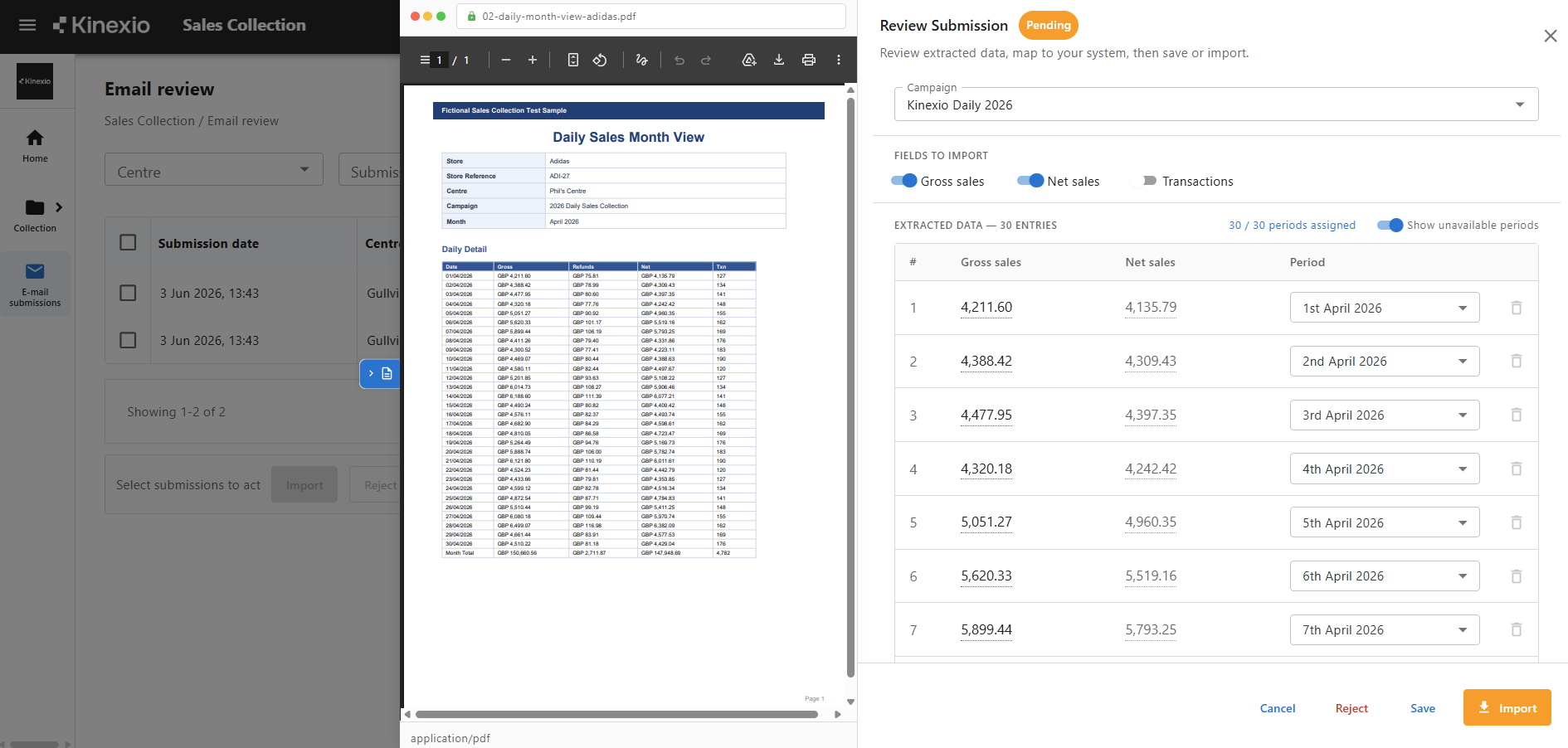
Tip: always check the figures against the original before you import. Open the slide-out to see exactly where the data came from — the email or the attached file — and compare.
If a submission is a mistake
If a submission is missing data, looks incorrect, you don't have to import it.
- Open it and choose Reject, add a short reason, and confirm. It leaves your table to keep things tidy.
- To remove it for good, switch on Show rejected and choose Delete permanently.
6. To check what imported
Switch on Include completed to see what's gone through. Imported figures show against the campaign — sales, net and transactions — in the right period, with totals added up for you.
Importing a whole month at once
If a retailer sends a daily breakdown — in the email, or as a PDF, Excel or CSV — you can import the whole month in one go. Open the submission, match the store and campaign, check the daily rows, and import. There's no need to enter each day separately.
FAQs
A submission hasn't shown up
Give it up to a minute — submissions don't appear instantly. If it's still missing after that, check the figures were emailed to the correct centre address. Still stuck? Email the support team.
I can't select a period
Set the store first — the periods only become available once the store is chosen.
The suggested store is wrong
That's normal — the suggestion is a best guess from the email, which sometimes uses a different name. Just select the correct store yourself.
This submission is a mistake
Reject it with a short reason instead of importing. It leaves your table; switch on Show rejected and choose Delete permanently to remove it completely.
The figures don't look right
Click into any figure to edit it before importing, and compare against the original in the slide-out.